

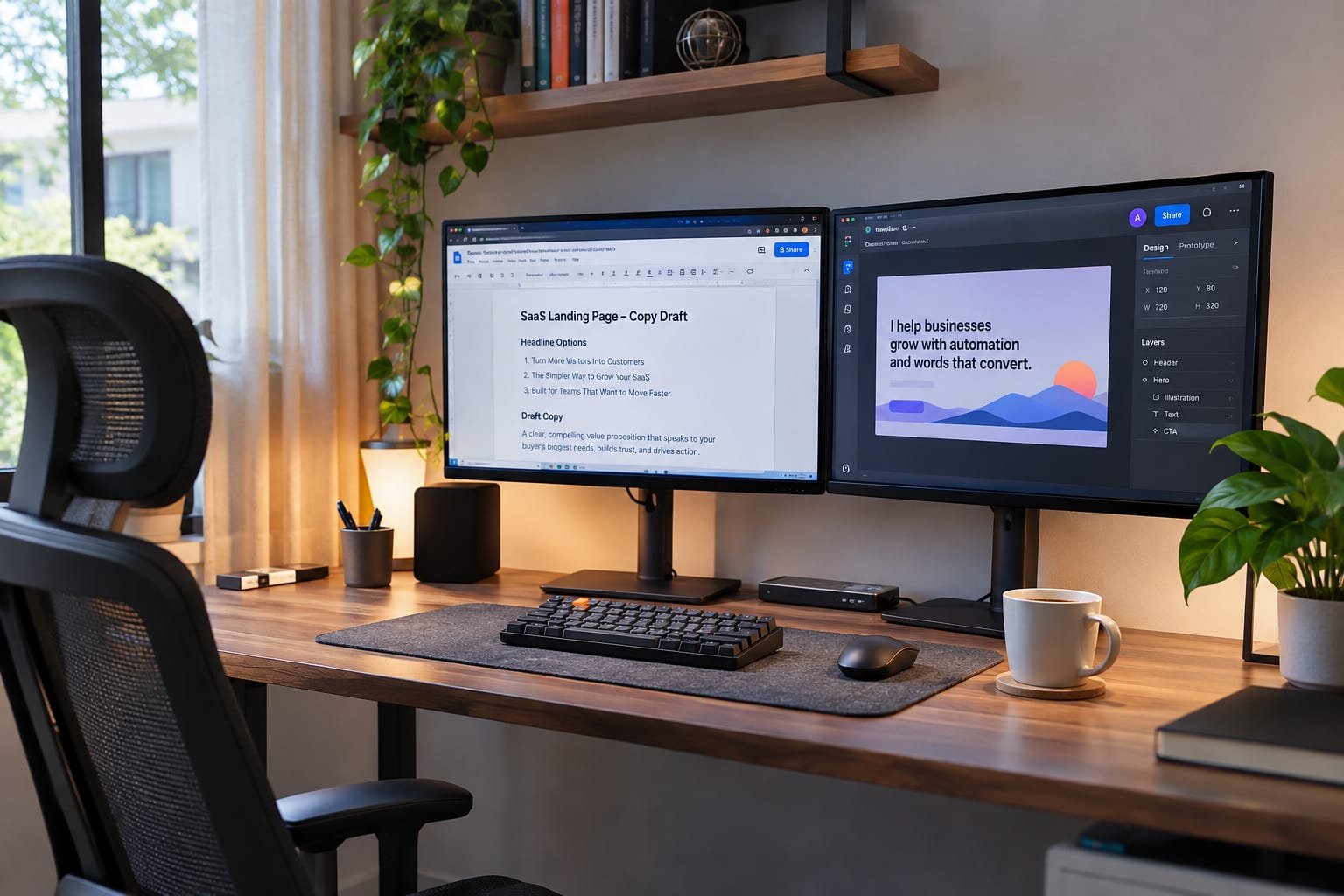
How Multiple Display Setups Can Improve Productivity and Workflow Efficiency
Switching between tabs all day wastes time. You lose your place, forget what you were reading, and copy things back and forth. A second screen fixes this fast. You keep your work in one view and your tools in another, so you stop hunting for windows.
Many people check the HP monitor price in Bangladesh before they add a screen to their desk. Here is how multiple displays improve your workflow and how to set them up correctly.
Stop Losing Time Switching Between Windows
A second screen reduces window-flipping time. You have one task in front of you and your Reference material on the side. It does take away the clicking, but it is a small change.
Consider a typical day at work. You read an e-mail, open up a spreadsheet, look at a chat, and then return to the e-mail. Each switch breaks your focus a little. One screen displays email, the other, the spreadsheet. You quickly look across rather than opening up tabs.
You also make fewer errors. If both documents are visible, you can scroll back and forth to verify a number or a name without switching between documents. This saves time and prevents minor mistakes that would otherwise be more expensive later.
Get More Done in Writing, Design, Coding, and Numbers
Multiple screens help almost any desk job. The gain is the same each time. You see more at once, so you decide faster.
A writer can keep the draft on one screen and research on the other. A designer can put the canvas on the main display and the tools on the side. A developer can run the code on one and read notes or test results on the other. An accountant can match two sheets side by side without printing anything. Pick the layout that fits your task, and keep it the same each day so your hands learn it.
Run Calls and Research Without Losing Your Place
Have your video call on one screen and your notes on the other. You can view people whilst typing, and there is no document covering a call! This makes meetings run smoothly and helps to keep notes clear.
Research is done in a similar fashion. Maintain open sources on the side; write on the main screen. You don’t copy and paste, then switch back. You don’t move your mouse: You move your eyes.
Multiple screens are also good for activities that require frequent monitoring. Now your main screen is clear for deep work, and you can have a dashboard, a chat, or an inbox open on the side.
Protect Your Eyes and Neck With a Smart Layout
The main screen should be placed directly in front of you, at eye level. Place the second screen directly next to and at the same level. In this way, your head remains at an even level, and you won’t be turning your head throughout the day.
For activities that will only be done occasionally (e.g., chat, email), use the side screen. Use the screen you use the most up front. Take short breaks as well and fix your gaze on something far away. Your eyes will thank you for it.
Pick the Right Screens for Your Desk
Use screens that are the same size and quality when you drag them across the screen; otherwise, windows will look different. Matching screens are also more streamlined and pretty to use. Use two letters, and if really necessary, add a third.
Confirm the screen size based on the distance you will be standing from it. It’s difficult to work at a very large screen on a small desk, because you have to move your head a lot. For most desks, it’s better to get a good view of the screen without turning your body, which means a medium-sized screen.
Before purchase, see what your PC can connect to. Check the ports on your computer and monitor, and ensure the cables are compatible. Measure your desk, too. A monitor arm will allow for more space if space is limited. Be sure to check out a couple of different sellers and make sure they have the product in stock; prices will vary.
Set Up Your Screens in Minutes
Connect the second screen and then open your display settings. It will be automatically located by your computer. Arrange icons on the screen in the same order as on your desktop, then select the icon to use as your main display.
Then find out how to use the window snap shortcut on your operating system. It allows you to quickly display a window on one side of a screen. Add two screens, and you can have four neat windows! Place the most frequently used apps in the same location each day. Your eyes will find out where to look, and the habit will save a few seconds each time.
Work Smarter by Giving Your Ideas More Room
The more screen space you have, the less you’ll be clicking, the fewer tabs you’ll lose, and the clearer your mind will be. Match up the screens, position them at the proper level, and assign them to specific jobs. Simple to set up and gain visibility on day one.
There is no need to work more. You require a desk that will not get in your way.