

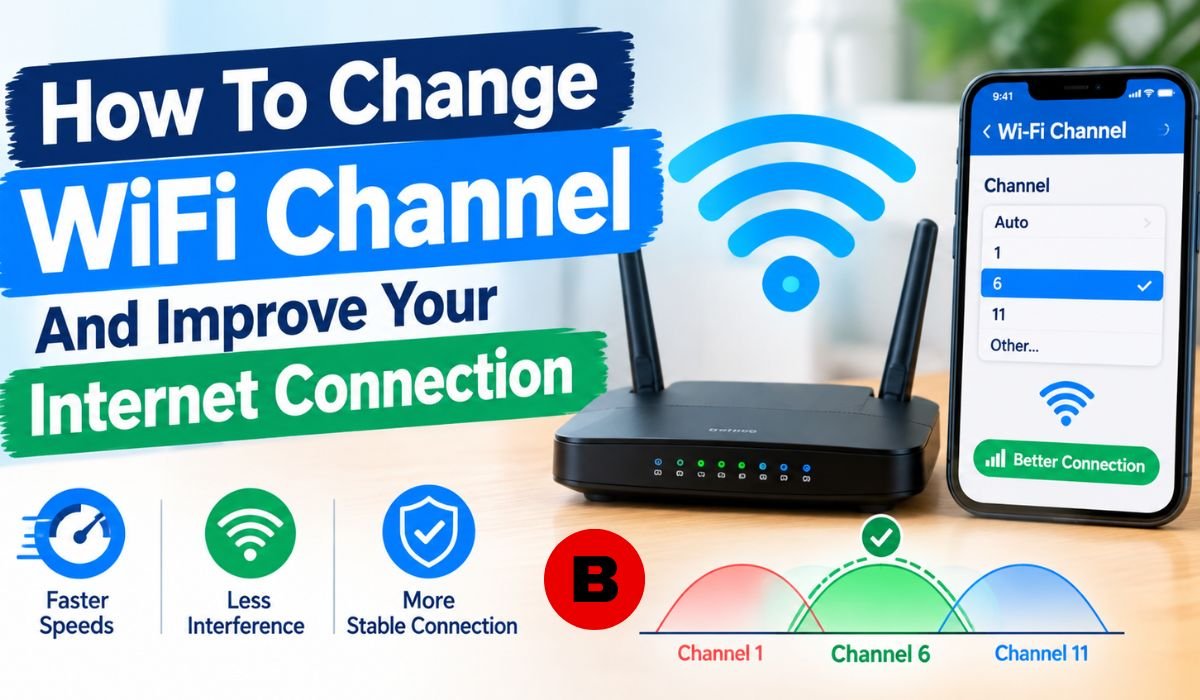
A Slow Or Unreliable WiFi Connection Isn’t Always The Fault Of Your Internet Provider. In A Busy Apartment Building, Office, Dormitory, Or Neighborhood, Several Routers May Be Operating Close To One Another And Competing For The Same Wireless Spectrum. When That Happens, Interference Can Affect Everyday Activities, From Streaming And Web Browsing To Online Gaming And Video Calls.
That’s Where Knowing How To Change WiFi Channel Can Be Useful. A WiFi Channel Is A Portion Of A Wireless Frequency Band That Your Router Uses To Communicate With Connected Devices. Moving To A More Suitable Channel can sometimes reduce interference and make a wireless connection more stable.
There is, however, an important distinction to keep in mind. Manually choosing a channel isn’t automatically better than leaving the router on Auto. Many modern routers can select an appropriate channel themselves. Manual selection is most useful when you’re investigating congestion, dealing with persistent wireless problems, or finding that your router’s automatic choice isn’t performing well.
Quick Bio Information
| Quick Fact | Information |
|---|---|
| WiFi Channel | A Portion Of Radio Spectrum Used For Wireless Communication |
| 2.4GHz | Longer Typical Range And More Congestion |
| 5GHz | Shorter Typical Range And More Channel Capacity |
| 2.4GHz Channels | 1, 6, And 11 Are Common Manual Choices |
| 2.4GHz Width | 20MHz Is A Reliable Starting Point |
| 5GHz Width | Auto Is Often A Good Modern-Router Choice |
| Auto Channel | Lets The Router Select A Channel Automatically |
| DFS | Dynamic Frequency Selection |
| Channel Congestion | Can Reduce Wireless Reliability |
| WiFi Analyzer | Can Help Identify Nearby Network Activity |
| Router Placement | Can Strongly Affect Coverage |
| Strong Signal | Does Not Guarantee Low Interference |
| Wider Channel | Can Increase Potential Throughput But Uses More Spectrum |
| Firmware | Updates Can Improve Stability, Security, And Compatibility |
| 6GHz | Requires Compatible WiFi 6E Or Newer Hardware |
| ISP Speed | Is Separate From Local WiFi Performance |
| Baseline Test | Helps Compare Performance Before And After Changes |
| Manual Channel | Is Most Useful When Auto Isn’t Performing Well |
What Is A WiFi Channel?
A WiFi Channel Is A Specific Portion Of The Radio Spectrum Used For Wireless Communication. An Easy Way To Picture It Is To Think Of The Entire WiFi Band As A Road And The Individual Channels As Lanes. When Several Networks are trying to use the same or overlapping lanes, wireless communication can become less efficient.
The 2.4GHz Band Is Especially Susceptible To Congestion. It Has Fewer Practical Non-Overlapping Channel Choices Than 5GHz And Is Also Used By Other 2.4GHz Devices. The 5GHz Band Offers More Channel Options And Generally Has More Capacity, Although Its Signals typically don’t travel as far or pass through walls as effectively as 2.4GHz.
Understanding these differences makes it easier to see why changing a channel can sometimes improve performance even when your device appears to have a strong WiFi signal.
How WiFi Channels Affect Internet Performance
Wireless Interference Can Reduce The Quality Of The Connection Between Your Router And Your Devices. Depending on the situation, you may notice webpages loading slowly, videos buffering, online games becoming more laggy, or devices disconnecting unexpectedly.
A strong WiFi signal doesn’t necessarily mean the connection is free from interference. Your phone or laptop might show several signal bars while nearby networks are still competing for wireless capacity.
It’s also important not to confuse WiFi performance with your actual internet service. If your ISP provides a 100Mbps connection, changing the WiFi channel won’t turn that service into a 500Mbps connection. What it can do is help your devices use the available connection more consistently when wireless interference is limiting performance.
Before making a change, it’s useful to establish a baseline. Test your connection and note its speed and stability. Then test it again after changing the channel. That gives you a much clearer idea of whether the adjustment actually made a difference.
2.4GHz Vs. 5GHz WiFi Channels
The 2.4GHz And 5GHz WiFi Bands Have Different Advantages, And Understanding Those Differences Can Help You Choose The Right Configuration.
The 2.4GHz band generally covers a greater distance and passes through walls more effectively. That makes it useful for devices located farther from the router. Its downside is that the band tends to be more crowded.
The 5GHz band typically provides more wireless capacity and can deliver excellent performance for devices that are relatively close to the router. The trade-off is range. A 5GHz signal generally loses strength more quickly as it travels through walls and other obstacles.
Some newer routers also support 6GHz through WiFi 6E or newer WiFi technologies. This band adds additional wireless capacity for compatible devices, although it has different coverage characteristics and requires compatible hardware.
For everyday troubleshooting, the first step is to determine whether the problem affects 2.4GHz, 5GHz, or both. That can help narrow down the likely cause.
Which WiFi Channel Should You Use?
When manually configuring a 2.4GHz network, Channels 1, 6, And 11 Are Commonly Recommended. In A Standard 20MHz Configuration, These Channels Don’t Overlap With One Another, making them practical choices in congested environments.
Still, there isn’t a single channel that will be best for every home. Microsoft recommends considering the number and signal strength of nearby access points when deciding between channels 1, 6, and 11. A channel with fewer nearby networks may be preferable, but the strength of those neighboring signals also matters.
The 5GHz band is different because it offers more channel choices. Rather than assuming one channel is always superior, it’s generally better to use Auto when it works well or test a suitable channel supported by your router and permitted in your region when troubleshooting.
What Is WiFi Channel Bandwidth?
WiFi Channel Bandwidth Refers To The Amount Of Radio Spectrum A Wireless Connection Uses. Depending on the router and WiFi band, users may see settings such as 20MHz, 40MHz, or wider options such as 80MHz.
A wider channel can potentially carry more data because it provides more spectrum for communication. But that extra width comes with a trade-off. In a crowded wireless environment, a wider channel can occupy more spectrum and may be more vulnerable to interference.
That means selecting the widest available channel isn’t necessarily the smartest choice. In some environments, a narrower and more reliable connection can provide a better real-world experience than a wider connection that struggles with interference.
Should You Use 20MHz Or 40MHz?
For 2.4GHz, 20MHz Is Often A Good Starting Point, Particularly In Areas Where Many Nearby Networks Are Operating. Apple currently recommends 20MHz for the 2.4GHz band because it can help avoid performance and reliability problems.
The approach is more flexible with 5GHz. Modern routers can often manage channel width automatically, and Apple’s current recommendations allow Auto or all available channel widths for 5GHz and 6GHz. Wider channels can provide higher potential throughput when conditions and client devices support them.
If a manually selected wider 5GHz configuration causes instability, trying a narrower option can be a sensible troubleshooting step. Ultimately, stability matters more than choosing a setting simply because it offers a larger number.
How To Check For WiFi Interference
Before Changing Your WiFi Channel, Take A Moment To Determine Whether Interference Is Actually Likely To Be The Problem. Pay attention to how your connection behaves at different times and in different parts of your home or office.
If performance drops when many nearby networks are active, congestion could be contributing to the problem. A WiFi analyzer can also show nearby networks and their channel activity. For 2.4GHz, particular attention should be paid to Channels 1, 6, and 11 when considering manual configuration.
Microsoft recommends looking at both the number and signal strength of nearby access points when selecting a channel.
It’s also worth testing the connection close to the router. If WiFi performs well nearby but becomes unreliable several rooms away, distance, walls, and router placement may be more significant than channel congestion.
How To Change WiFi Channel On Your Router
The Exact Steps Vary Between Router Brands And Firmware Versions, But The Overall Process Is Usually Similar. Start by connecting your phone or computer to the router. Open a web browser and enter the router’s administration address. Common addresses include 192.168.0.1 and 192.168.1.1, while some manufacturers use their own web addresses.
Once you’re signed in, look for a section called WiFi Settings, Wireless Settings, Advanced Wireless, or Channel And Bandwidth. Select the WiFi band you want to configure and find the channel setting.
If the router is currently set to Auto and the network is working well, there’s generally no need to force a manual channel. If you’re troubleshooting congestion, select a suitable supported channel and adjust the channel width if necessary.
Save the changes and allow the router’s WiFi service to restart. Once the network returns, reconnect your devices and compare the results with your original baseline.
It’s a good idea to record your original settings before making changes, particularly if your router offers a configuration backup feature. Keeping router firmware and connected-device software up to date is also an important part of maintaining a reliable wireless network.
How To Change WiFi Channel On A Tenda Router
On Supported Tenda Routers, You Can Open tendawifi.com Or The Router’s Local Administration Address And Sign In. The Tenda Instructions For Supported Models Direct Users To WiFi Settings → Channel And Bandwidth.
For a 2.4GHz network, Channels 1, 6, and 11 are the main manual options worth testing. On 5GHz, the available channels depend on the router model, firmware, and regional requirements. Users should select only the channels presented as available by their router.
After changing the settings, click Save and allow the router to restart its WiFi service. Give the network a moment to return, reconnect your devices, and test both stability and performance.
If the change doesn’t improve the connection, you can return to the previous configuration or test another suitable option. Making one change at a time is the best way to determine what actually helped.
How To Change WiFi Channel Using The Tenda WiFi App
Some Tenda Routers Also Support WiFi Management Through The Tenda WiFi App. For users who prefer managing their network from a smartphone, the app can be a convenient alternative to the browser-based administration page.
The exact interface may vary depending on the router model and app version, so the menu names won’t necessarily be identical on every device. Look for the WiFi or wireless settings and locate the channel and bandwidth controls if your model provides them.
Once the change has been applied, reconnect devices if necessary and test the connection from the same location used for your earlier measurements. Keeping the testing conditions consistent makes the comparison more useful.
What Are DFS Channels?
DFS Stands For Dynamic Frequency Selection. Certain 5GHz channels are governed by rules intended to protect radar systems from interference. When a router operating on a DFS channel detects radar activity, it may be required to change channels, potentially causing a temporary WiFi interruption.
As a result, a 5GHz network can sometimes appear perfectly stable and then suddenly disconnect or move to another channel. The specific DFS channels and requirements vary by country and regulatory domain, so a particular channel range shouldn’t be treated as universal.
If your 5GHz connection repeatedly drops while using a DFS channel, testing another supported channel can help determine whether DFS behavior is contributing to the problem. The channels displayed by your router for your region should be treated as the available options.
What To Do After Changing Your WiFi Channel
Don’t Decide Whether A New Configuration Works Based On A Single Speed Test. Run several tests and, ideally, compare them with measurements taken before the change.
Download and upload speeds matter, but they’re not the only things worth watching. Connection stability, latency, streaming quality, web browsing, gaming performance, and the frequency of disconnections can provide a much clearer picture.
Microsoft recommends establishing a baseline and comparing performance after network changes.
If Channel 1 performs poorly on 2.4GHz, try Channel 6 or 11. If a manually selected 5GHz channel doesn’t help, another supported channel may be worth testing, or you can return to Auto. Change one significant setting at a time so you can identify the source of any improvement or deterioration.
What If Changing The WiFi Channel Doesn’t Fix The Problem?
If Changing The Channel Doesn’t Make A Noticeable Difference, Don’t Keep Switching Channels Without A Clear Reason. The underlying problem may have nothing to do with channel congestion.
Router placement is one of the first things worth checking. A router positioned centrally and elevated from the floor, with fewer physical obstacles around it, can provide better coverage than one hidden inside a cabinet or placed behind large objects. Microsoft also recommends keeping the router away from walls and large metal objects where possible.
Other possibilities include outdated firmware, too many connected devices, limited coverage, an older WiFi adapter, device-specific problems, or an issue with the modem or ISP.
Testing another phone, computer, or tablet can help isolate the problem. If only one device struggles, the device itself may need attention. If every device disconnects simultaneously, the router, modem, or internet service deserves closer investigation.
Common WiFi Channel Problems
One common scenario is unstable 2.4GHz WiFi in a densely populated area. When interference is suspected, testing Channels 1, 6, and 11 with 20MHz bandwidth can be a sensible starting point. If Auto performs better, however, there’s no advantage in forcing a manual channel.
Another situation involves 5GHz WiFi that repeatedly disconnects. Distance and walls can reduce 5GHz coverage, while DFS behavior, congestion, and device compatibility can also play a role.
If WiFi is fast when you’re standing beside the router but becomes slow or unreliable in another room, the channel may not be the primary problem. Similarly, if all devices lose internet access at once, investigate the router, modem, and ISP rather than assuming the wireless channel is responsible.
Best WiFi Channel Settings At A Glance
| WiFi Band | Recommended Starting Approach | Channel Width |
|---|---|---|
| 2.4GHz | Auto, Or Manually Test 1, 6, And 11 | 20MHz |
| 5GHz | Auto, Or Test A Suitable Supported Channel | Auto Is Often Appropriate |
| 6GHz | Use Automatic Management When Available | Auto Or Supported Widths |
These settings are starting points rather than universal rules. Current Apple guidance recommends Auto channel selection and 20MHz on 2.4GHz, while Microsoft recommends evaluating nearby networks when manual channel selection is necessary.
Final Thoughts
Knowing How To Change WiFi Channel Gives You A useful troubleshooting option, but it shouldn’t be treated as a guaranteed speed fix. Channel selection is just one part of maintaining a reliable wireless network.
On 2.4GHz, 20MHz bandwidth and Channels 1, 6, and 11 are useful manual starting points when interference is suspected. On 5GHz and 6GHz, automatic channel and width management is often a better choice with modern routers, while manual testing can still be helpful when Auto isn’t delivering satisfactory results.
The best configuration is ultimately the one that works reliably in your actual environment. Establish a baseline, make one change at a time, and test the results rather than relying on assumptions about which channel should be fastest.
And if changing the channel doesn’t solve the issue, broaden the investigation. Router placement, coverage, firmware, connected devices, hardware, and the internet connection itself can all affect WiFi performance. A stable connection that works consistently where you need it is far more valuable than a setting that simply looks impressive on paper.
Frequently Asked Questions About WiFi Channels
What Is The Best WiFi Channel?
There Isn’t One Universal Best Channel. On 2.4GHz, Channels 1, 6, And 11 Are Common Manual Choices Because They Don’t Overlap With One Another In A Standard 20MHz configuration. The best choice depends on nearby networks and interference. On modern routers, Auto can also be the better option if it selects channels effectively.
Does Changing The WiFi Channel Increase Internet Speed?
Changing The Channel Doesn’t Increase The Speed Supplied By Your ISP. It can, however, improve real-world wireless performance when interference is limiting the connection. A cleaner channel may result in better stability, lower latency, and more consistent performance.
Is 20MHz Better Than 40MHz?
For 2.4GHz, 20MHz Is Generally A Strong Choice For Reliability, especially in crowded environments. A 40MHz channel can provide more potential throughput but uses more spectrum and may be more vulnerable to interference. On 5GHz, wider channel options can provide higher potential performance, and modern routers often work well with automatic channel-width management.
Why Does My 5GHz WiFi Keep Disconnecting?
Several factors can cause repeated 5GHz disconnections, including distance, walls, interference, DFS channel behavior, router configuration, and device compatibility. If your router is operating on a DFS channel, testing another supported channel can help determine whether DFS is contributing to the interruptions.
Should I Leave My WiFi Channel On Auto?
In Many Cases, Yes. If your modern router’s automatic channel selection works well, there’s usually no reason to override it. Apple currently recommends Auto channel selection. Manual selection can be useful when troubleshooting congestion or when the router’s automatic choice isn’t providing reliable performance.
How Often Should I Change My WiFi Channel?
You Don’t Normally Need To Change Your WiFi Channel Regularly. If your wireless environment changes significantly or you begin experiencing new interference, it can make sense to reassess the configuration. Otherwise, leaving a stable setup alone is usually the better approach.
Can Router Placement Affect WiFi More Than The Channel?
Yes. Distance, walls, floors, metal objects, and the router’s overall position can have a major effect on wireless coverage and performance. A centrally positioned router with fewer physical obstacles around it can sometimes make a greater difference than changing the channel.
What Should I Do If Changing The Channel Doesn’t Help?
If Changing The Channel Doesn’t Solve The Problem, Look Beyond Wireless Congestion. Test another device, check the router’s placement, update its firmware, compare performance near and far from the router, and investigate the modem or ISP connection if necessary. If multiple devices lose internet access at the same time, the problem may not be related to the WiFi channel at all.
Learn more and explore exciting content on: iPad 2 Activation Lock: How to Remove It and Regain Access