

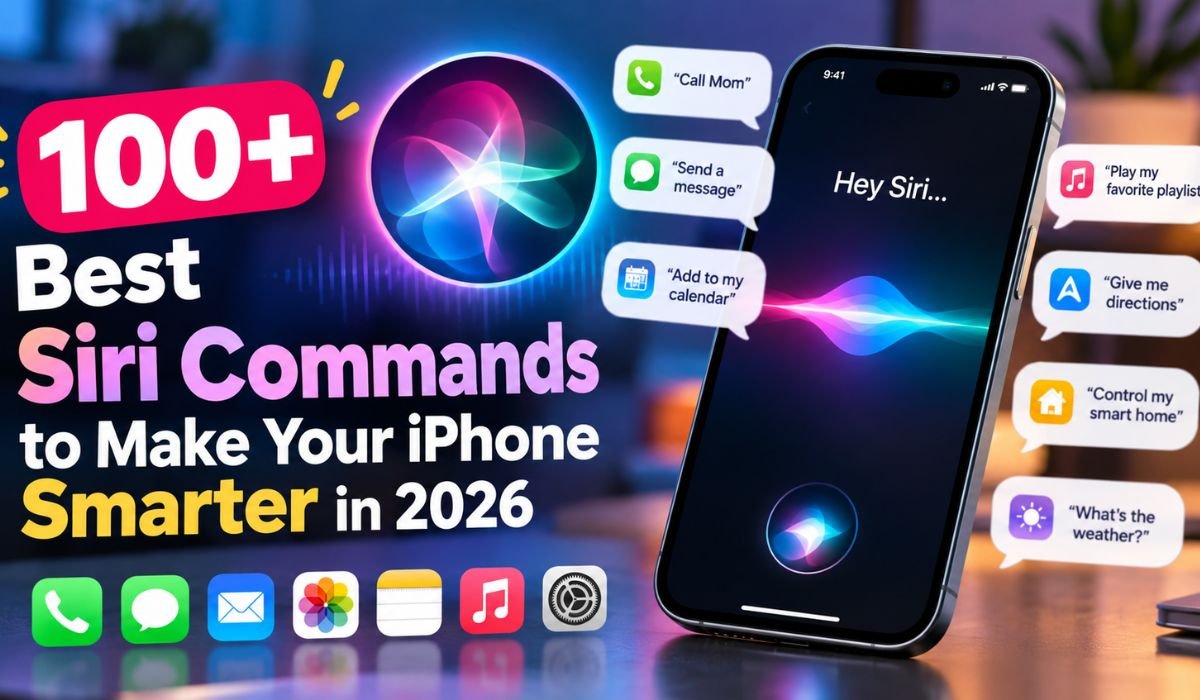
There are plenty of iPhone features you might use only once in a while. Siri is different. Once you find the right Siri Commands for your routine, Apple’s voice assistant can quietly save you time throughout the day.
You can ask Siri to start a timer while your hands are covered in flour, send a message when you’re getting ready to leave, check tomorrow’s weather from across the room, or pull up directions without typing an address. None of these tasks is especially difficult on its own. The advantage is that Siri can remove several taps from something you already do regularly.
The assistant is changing, too. In 2026, Apple’s Siri experience includes newer capabilities connected to Apple Intelligence and Siri AI on compatible hardware. These developments are designed to make conversations feel less rigid and give Siri a better understanding of context, what’s happening on your screen, and the information you need.
That doesn’t mean every Siri request works equally well on every iPhone. Your device, iOS version, language, region, permissions, installed apps, and available services can all affect the result.
This guide brings together more than 100 practical Siri Commands, along with setup advice, troubleshooting tips, shortcuts, smart home controls, and newer Siri AI features. The goal isn’t to memorize a giant list. It’s to find the commands that genuinely make your iPhone easier to use.
What Are Siri Commands And How Do They Work?
Siri Commands are spoken or typed requests that tell Apple’s digital assistant what you’d like it to do. Instead of opening an app, finding the right menu, and tapping through several screens, you can often make the same request in one sentence.
Say “Set an alarm for 7 AM,” for example, and Siri can create the alarm without requiring you to open the Clock app. Ask for directions home and Siri can work with Apple Maps. Tell it to remind you about an appointment and it can create the reminder for you.
Siri works across a range of Apple services, including Messages, Calendar, Reminders, Maps, Music, Photos, and Home. Compatible third-party apps can support Siri actions as well, although what you can do varies from one app to another.
Behind those commands are speech recognition and language-processing technologies that interpret what you’re saying and determine the requested action. The exact experience depends on your hardware, software, settings, permissions, and location.
Traditional Siri tends to work best when the request is direct. Newer Siri AI capabilities are intended to make the assistant more conversational and better at understanding context.
Either way, Siri is most valuable when it removes friction from something you’d otherwise have to do manually.
Quick Bio Information About Siri
| Information | Details |
|---|---|
| Assistant Name | Siri |
| Developer | Apple |
| First Introduced | 2011 |
| First Supported iPhone | iPhone 4S |
| Technology | Voice Recognition And Artificial Intelligence |
| Main Purpose | Digital Voice Assistance |
| Supported Devices | Compatible Apple Devices |
| Voice Activation | Siri Or Hey Siri |
| Button Activation | Side Button Or Home Button |
| Communication Features | Calls, Messages, And Email |
| Productivity Features | Reminders, Notes, And Calendar |
| Navigation Service | Apple Maps |
| Music Features | Playback And Audio Controls |
| Smart Home Support | Apple Home |
| Automation Application | Apple Shortcuts |
| Internet Requirement | Required For Siri Requests |
| AI Technology | Apple Intelligence |
| New Siri Experience | Siri AI Beta |
| Siri AI Release | September 2026 |
| Compatible iPhones | iPhone 15 Pro Models And Supported iPhone 16 Models Or Later |
How To Activate And Set Up Siri On iPhone
Before experimenting with dozens of Siri voice commands, it’s worth spending a few minutes on setup. A surprising number of Siri problems come down to permissions, activation settings, or incomplete personal information.
Open Settings on your iPhone and select Siri. Depending on the version of iOS you’re using, Siri-related controls may appear under Apple Intelligence & Siri. From there, follow the prompts for voice activation and recognition.
On supported devices and languages, Siri can respond to “Siri” or the familiar “Hey Siri.” If you’d rather not use voice activation, pressing and holding the side button can launch the assistant. Older iPhones equipped with a Home button use that button instead.
Personal details can make Siri considerably more useful. Make sure your contact information is correct, and consider setting your home and work locations. With those details in place, requests such as “Give me directions home” become much more straightforward.
The same principle applies to relationships. When Siri knows which contact is your brother, mother, partner, or another family member, you can use the relationship naturally in a request rather than remembering the person’s saved contact name.
Location-based reminders and navigation also need the appropriate Location Services permissions. If a command doesn’t work as expected, permissions are one of the first things worth checking.
Basic Siri Commands For Everyday Tasks
You don’t need complicated automation to get value from Siri. In fact, some of the best Siri Commands are the ones that handle small, repetitive jobs.
You can ask “What time is it?”, “What’s today’s date?”, “Open Settings,” “Open Camera,” “Open Safari,” “Open Calculator,” “Open Photos,” “Open Messages,” or “Open Calendar.”
Siri can also help with basic device controls. Try “Turn on the flashlight,” “Turn off the flashlight,” “Increase the volume,” “Decrease the volume,” or “Set the volume to 50 percent.”
Other useful requests include “Turn on Do Not Disturb,” “Turn on Bluetooth,” “Turn on Wi-Fi,” and “What’s my battery percentage?”
Not every settings request behaves in exactly the same way. Depending on the action and your iOS version, Siri may change a setting directly, ask for confirmation, or simply take you to the appropriate controls.
That’s an important distinction. A good Siri command isn’t necessarily one that sounds impressive; it’s one that gets you to the result faster than doing it manually.
Siri Commands For Calls And Messages
Communication is where Siri starts to feel particularly useful. If your contacts are organized properly, many common calls and messages can be handled with a short request.
Say “Call Mom,” “Call David on speaker,” “FaceTime Sarah,” “Send a message to John,” or “Text Emma that I’m running late.” Siri can also handle requests such as “Read my latest message,” “Reply to that message,” “Send a message to my brother,” “Call my office,” and “Show my missed calls.”
When a supported third-party app offers the necessary integration, you may be able to specify it in the request. For instance, “Send a WhatsApp message to Sarah saying hello” can work when WhatsApp and the relevant permissions are properly configured.
Siri may ask you to confirm a recipient or the contents of a message before anything is sent. That extra step can be useful when several contacts have similar names.
It’s still sensible to pay attention when sending anything important. Voice recognition isn’t infallible, and a misunderstood word can completely change the meaning of a message.
Siri Commands For Reminders, Alarms, And Timers
If there’s one category that shows why voice control can be genuinely practical, it’s reminders, alarms, and timers.
You can say “Set an alarm for 6 AM,” “Wake me up at 7 tomorrow,” “Set a timer for 10 minutes,” “Set a timer for 30 seconds,” “Cancel my timer,” “Show my alarms,” or “Turn off my 8 AM alarm.”
Reminders offer even more flexibility. Try “Remind me to buy milk,” “Remind me to call Dad tomorrow,” “Remind me to pay my electricity bill on Friday,” or “Remind me to take out the trash tonight.”
Where supported and correctly configured, reminders can also be connected to locations. “Remind me to buy groceries when I leave work” is often more useful than choosing an arbitrary time because the reminder arrives when it’s relevant.
Siri can also create reminders connected to supported content you’re currently viewing. A request such as “Remind me about this” can be particularly handy when you’re looking at something you want to revisit later.
This is Siri at its best: capturing a thought before it disappears and doing so without breaking whatever you’re already doing.
Siri Commands For Calendar And Productivity
Calendar and productivity commands are useful because they turn Siri into a quick capture tool. Instead of stopping to type an appointment or note, you can deal with it while the information is still fresh.
Ask “What’s on my calendar today?”, “What’s my next meeting?”, “Schedule a meeting tomorrow at 3 PM,” “Create an appointment for Monday,” or “Do I have any meetings on Friday?”
If you’re arranging something socially, try “Add lunch with Sarah to my calendar.”
Siri can help with notes and lists as well. “Create a note,” “Make a note that I need new batteries,” and “Add bread to my grocery list” are simple examples. Grocery-list behavior depends on how your lists and Reminders are configured.
The more information a calendar request contains, the more important it becomes to check the result. Dates, times, names, and locations can all be misheard.
For an ordinary reminder, correcting an error later isn’t a major problem. For an important meeting or appointment, it’s worth spending a few seconds confirming that Siri saved exactly what you intended.
Siri Commands For Music And Entertainment
Voice control is a natural fit for music because you often want to change something while the phone itself is out of reach.
Try “Play relaxing music,” “Play my favorite playlist,” “Play the next song,” “Pause the music,” “Resume playback,” “Shuffle my music,” “Repeat this song,” or “Skip this track.”
You can make requests more specific, too. “Play songs by Taylor Swift,” “Play some jazz,” and “Play my workout playlist” tell Siri what kind of listening experience you’re after.
Wondering what’s currently playing? Ask “What song is playing?”
Podcast listeners have useful options as well. Depending on the application and playback context, commands such as “Play my latest podcast,” “Pause the podcast,” and “Skip forward 30 seconds” can save you from reaching for the screen.
Apple Music naturally has deep integration with Apple’s ecosystem, while selected third-party services can support Siri actions too. If you’re using something such as Spotify, naming the service in your request can help Siri understand where you want the content played.
Availability can vary according to the application, subscription, device, and permissions.
Siri Commands For Navigation And Maps
Navigation is another area where voice control makes immediate sense, particularly when you’re already on the move.
You can ask Siri to “Navigate home,” “Give me directions to work,” “How long will it take to reach the airport?”, “Find a nearby gas station,” or “Where’s the nearest hospital?”
For everyday errands, try “Where’s the nearest supermarket?”, “Find restaurants nearby,” or “How far is the shopping mall?”
Traffic information can be requested just as naturally with “What’s the traffic like?”
Siri generally works with Apple Maps for these navigation requests. Keeping Location Services enabled and making sure your home and work addresses are correctly configured can improve the usefulness of the results.
There’s also a clear safety consideration here. When you’re driving, Siri is most valuable when it keeps your hands off the phone rather than encouraging you to look at it. Use CarPlay or an appropriate hands-free setup where available, and don’t interact with detailed onscreen results while the vehicle is moving.
Siri Commands For Weather, Math, And Translation
Sometimes you don’t need a full web search. You just need a quick answer, and that’s another area where Siri can be helpful.
For weather, ask “What’s the weather today?”, “Will it rain tomorrow?”, “What’s the temperature outside?”, “Is it going to snow?”, or “What’s the weather this weekend?”
Math questions work well for everyday calculations. You can try “What’s 25 percent of 200?”, “What’s 45 divided by 9?”, or “What’s the square root of 144?”
Conversions are useful in the kitchen, while traveling, or when reading information from another country. Ask “Convert 100 dollars to euros,” “Convert 400 Fahrenheit to Celsius,” or “How many kilometers are in 10 miles?”
Siri can also help with basic language questions. “Translate good morning into Spanish,” “How do you say thank you in French?”, “How do you spell necessary?”, and “What does productivity mean?” are all examples of the kinds of short requests worth trying.
Weather and currency information can change, so these requests rely on current data rather than fixed information stored on your phone.
Siri Commands For Camera And Photos
Siri isn’t a replacement for the Camera or Photos apps, but it can shorten the route to common photography tasks.
Try saying “Open Camera,” “Take a selfie,” “Open Photos,” “Show my recent photos,” or “Show photos from yesterday.”
You can also try more descriptive requests, such as “Find pictures from my vacation,” although the results depend on what your device and software can recognize about your photo library.
One detail is worth understanding before you try to take a completely hands-free photograph. Asking Siri to “Take a selfie” generally opens the appropriate camera view; it doesn’t necessarily press the shutter for you.
If automatic capture is important, Apple’s Shortcuts app provides another route. A custom shortcut can combine supported photo actions into a workflow that better matches what you want Siri to do.
On compatible hardware, newer Siri AI and Apple Intelligence features also expand how users can find and work with information in their photo libraries using more natural descriptions.
Siri Commands For Smart Home Devices
A well-configured smart home is one of the places where Siri Commands can become genuinely powerful.
If you have compatible accessories set up through Apple Home, try “Turn on the living room lights,” “Turn off the bedroom lights,” “Set the lights to 50 percent,” or “Change the lights to blue.”
Climate controls can work in a similar way. Depending on your compatible equipment, you might say “Set the thermostat to 22 degrees” or ask “What’s the temperature in the living room?”
Whole-home requests can be even more convenient. “Turn off all the lights” is much quicker than checking individual rooms before bed.
Apple Home scenes take this idea further. Saying “Run my Good Night scene” can trigger several predefined actions together. A scene might turn off selected lights, adjust the thermostat, and prepare other compatible accessories for bedtime.
Exactly what Siri can control depends on the smart home hardware you’ve installed, how Apple Home is configured, and which permissions are available.
Siri Commands For Apple Watch And AirPods
Siri becomes more useful when you stop thinking of it as an iPhone-only feature.
On a compatible Apple Watch, for example, you can ask Siri to “Start a 20-minute outdoor walk,” “Set a timer for five minutes,” “Call Mom,” or “What’s my next appointment?”
The watch can also be useful for creating reminders, checking the weather, and requesting directions without pulling your phone out of your pocket.
Compatible AirPods add another hands-free route to Siri. Depending on the model and settings, Siri can help with music playback, phone calls, messages, and other supported requests.
That makes the broader Apple ecosystem especially useful during workouts and commutes. Instead of reaching for your iPhone every time something comes to mind, you can often make the request through the device you’re already wearing.
Activation methods and individual features vary between Apple Watch and AirPods models, so your available controls may differ.
How To Create Custom Siri Shortcuts
Built-in Siri Commands cover plenty of everyday situations, but Shortcuts is where you can start tailoring voice control to your own routine.
Open the Shortcuts app and create a new shortcut. You can then select supported actions, arrange them in the order you want, and give the finished workflow a memorable name.
Imagine a shortcut called “Start My Morning.” Depending on the actions available on your device, it might show your calendar, display reminders, and begin playing a preferred playlist.
A work-related shortcut could gather several routine actions into one workflow. A photography shortcut could handle supported camera and saving actions. The possibilities depend heavily on the apps you have installed and the actions those apps expose to Shortcuts.
Once you’ve created a shortcut, its name becomes important because you can ask Siri to run it.
Some actions require permission or confirmation, and others may require your iPhone to be unlocked. That’s intentional in situations where automatic execution could expose private information or perform a sensitive action.
The real appeal of Shortcuts isn’t complexity. It’s being able to make Siri fit your routine instead of changing your routine to fit Siri.
Siri AI And Apple Intelligence In 2026
The biggest change to Siri in 2026 is Siri AI, Apple’s next-generation assistant built around Apple Intelligence.
Apple introduced the Siri AI beta in September 2026. On compatible devices, the newer experience is designed to move beyond the more rigid command-and-response behavior associated with traditional Siri.
Natural conversation is a major part of that change. Rather than carefully phrasing every request as an isolated instruction, users can communicate in a more conversational way and continue with follow-up questions.
Personal context is another important development. On supported devices and with appropriate permissions, Siri AI can work with relevant information from sources such as messages, emails, and photos to help answer questions.
Onscreen awareness is designed to make the assistant more useful when you’re already looking at something. Instead of manually copying information from one place to another, compatible Siri AI features can understand supported content on the screen and help you act on it.
The newer experience also expands the actions Siri can perform within compatible apps.
Hardware matters, though. Siri AI requires iOS 27 and a compatible Apple Intelligence device. Supported iPhones include the iPhone 15 Pro and iPhone 15 Pro Max, along with supported iPhone 16 models and later compatible devices.
The beta debuted in English, with additional language support planned as the rollout expands. Availability also varies by region, and some server-based capabilities have usage limits.
If your iPhone doesn’t support Siri AI, that doesn’t make traditional Siri obsolete. Timers, reminders, messages, calls, navigation, and many of the other Siri Commands in this guide remain useful without the newer AI experience.
Why Siri Commands Don’t Work And How To Fix Them
When Siri gets something wrong, repeating the same request louder usually isn’t the best solution.
Start with the basics. Make sure Siri is enabled, your internet connection is working, and the microphone isn’t blocked or malfunctioning. It’s also worth keeping iOS updated, since software updates can fix bugs and change how certain Siri features behave.
Permissions are another common source of trouble. A navigation command may need Location Services, while an app-specific request depends on that app having the appropriate access and Siri integration.
Contact information matters as well. If Siri repeatedly calls the wrong person, check whether you have similarly named contacts or incomplete contact details.
Wording can make a noticeable difference with traditional Siri. A direct request such as “Remind me to call Sarah tomorrow at 9 AM” gives Siri the task, person, date, and time in a single clear sentence.
If a complicated request fails, break it into smaller actions rather than trying to squeeze several unrelated instructions into one command.
Most importantly, don’t assume that a successful-looking response means every detail is correct. If Siri creates an important meeting, reminder, or message, check the result before relying on it.
Final Thoughts
The most useful Siri Commands aren’t necessarily the cleverest ones. They’re the commands that remove a small piece of friction from something you already do.
Setting a kitchen timer without touching your phone might save only a few seconds. The same is true of creating a reminder, checking tomorrow’s forecast, calling a family member, or starting a playlist. But those small conveniences add up, particularly when Siri becomes part of your normal routine.
Start with a handful of commands that solve real problems for you. If you’re always forgetting tasks, focus on reminders. If you spend a lot of time driving, learn the navigation and communication commands. If your home is filled with compatible smart devices, scenes and Apple Home controls may deliver the biggest improvement.
Shortcuts can take things further by turning repeated sequences into personalized workflows. And on compatible devices, Siri AI and Apple Intelligence are pushing Apple’s assistant toward more conversational, context-aware interactions.
There’s still good reason to check important results. Voice recognition can make mistakes, third-party support varies, and not every feature is available on every device or in every region.
Used with those limitations in mind, Siri doesn’t have to be something you occasionally ask trivia questions. With the right Siri Commands, it can become a genuinely useful layer of your iPhone—one that saves taps, captures thoughts quickly, and makes everyday tasks just a little easier.
FAQs About Siri Commands
What Are The Best Siri Commands?
The best Siri Commands are usually the ones connected to tasks you already perform every day. Setting alarms and timers, creating reminders, sending messages, making calls, checking weather conditions, playing music, and requesting directions are good places to start. Rather than memorizing dozens of commands, choose a few that replace actions you regularly perform by hand.
Can Siri Work Without Internet?
Siri requests require an internet connection. Your iPhone itself can still perform many functions without internet access, but you shouldn’t assume that a spoken Siri request will be available when the device is offline. Connectivity can also affect requests for live information such as weather and currency conversions.
How Do I Activate Siri On My iPhone?
Open Settings and locate the Siri controls, which may appear under Apple Intelligence & Siri depending on your software version. Enable voice activation and complete the setup process. Supported devices can respond to “Siri” or “Hey Siri.” You can also press and hold the side button, or use the Home button on compatible older models.
Can Siri Send WhatsApp Messages?
Siri can work with WhatsApp when the app supports the necessary integration and you’ve granted the appropriate permissions. A request such as “Send a WhatsApp message to Sarah saying I’m running late” may allow you to compose or send a message without manually opening the conversation. Siri may ask for confirmation before completing the action.
What Is The Difference Between Siri And Siri AI?
Traditional Siri is primarily designed around voice commands and relatively direct requests. Siri AI expands that experience with more natural conversation, personal context, onscreen awareness, and deeper interactions with compatible apps. Siri AI requires supported Apple Intelligence hardware and software, and availability can vary by language and region.
Can I Create My Own Siri Commands?
Yes. Apple’s Shortcuts app lets you build personalized workflows from supported actions and run them using Siri. After creating a shortcut and giving it a recognizable name, you can ask Siri to launch it. What the shortcut can do depends on the actions available from iOS and your installed apps.
Why Does Siri Sometimes Misunderstand Me?
Background noise, unclear speech, similar contact names, unsupported requests, missing permissions, and complicated wording can all cause problems. Try making the request shorter and more specific. If Siri consistently struggles with a particular feature, check your settings, permissions, internet connection, and software version.
Are Siri Commands Safe To Use?
Apple provides privacy and permission controls around Siri, but voice convenience doesn’t eliminate the need for care. Review permissions for apps that can access personal information, keep your iPhone updated, and check sensitive actions before confirming them. This is particularly important for messages, personal data, smart home controls, and other requests that can affect people or devices beyond your phone.
Learn more and explore exciting content on: Alexa Commands: 100+ Best Voice Commands to Make Life Easier