

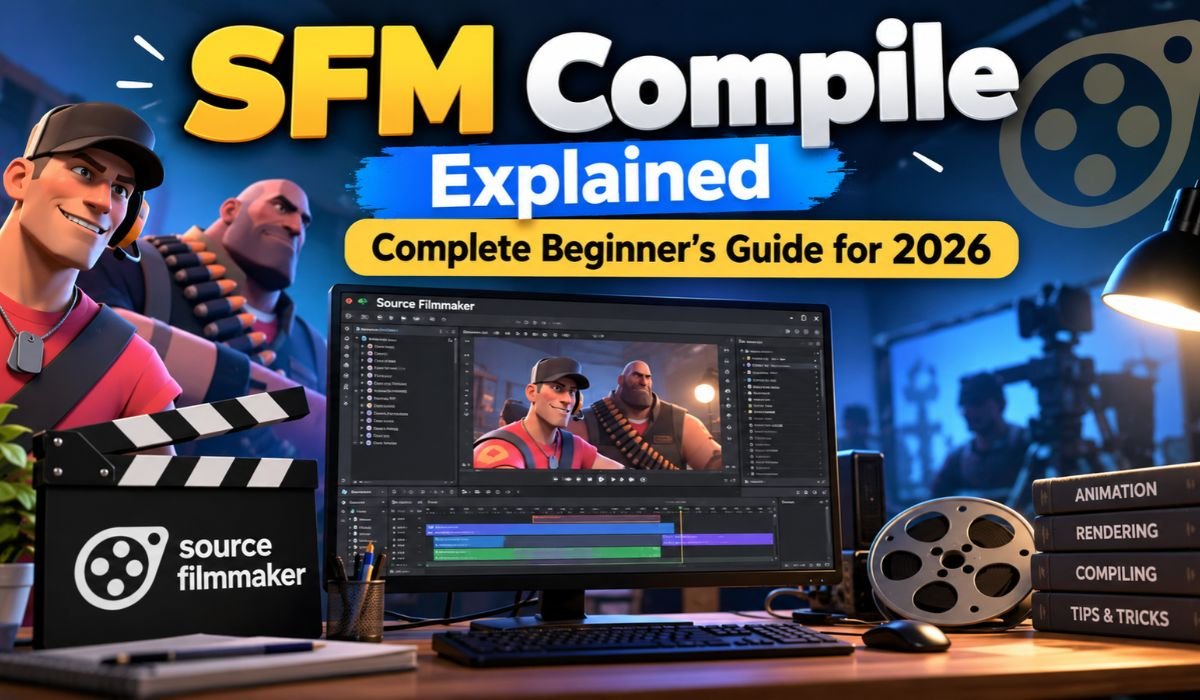
Source Filmmaker has given animators, digital artists, and gaming enthusiasts a creative space to bring their ideas to life. Developed by Valve, this free animation software allows users to create cinematic scenes, animated characters, and detailed 3D environments using the Source engine. While its built-in models provide plenty of opportunities, working with custom assets introduces a different set of challenges.
Imagine spending hours designing a character in Blender, only to discover that Source Filmmaker won’t recognize the finished model. Sometimes the character doesn’t appear at all. Other times, textures turn pink and black, animations behave strangely, or the software reports an unexpected error.
That’s where SFM Compile comes into the picture.
SFM Compile is the process of preparing and converting custom 3D models into formats that Source Filmmaker can recognize. It connects external modeling applications with the Source engine, making it possible to use original characters, props, and other assets in animation projects.
This beginner-friendly guide explains how SFM Compile works in 2026, which tools are useful, how to prepare models correctly, and what to do when something goes wrong. Whether you’re creating your first custom prop or exploring more advanced animation techniques, understanding the compilation process will make your work considerably easier.
Quick Information About SFM Compile
The following table provides a convenient overview of the main tools, formats, and technical details associated with SFM Compile.
| Information | Details |
|---|---|
| Main Topic | SFM Compile |
| Related Application | Source Filmmaker |
| SFM Developer | Valve Corporation |
| Main Purpose | Custom Model Compilation |
| Primary Compiler | Studiomdl |
| Popular Graphical Tool | Crowbar |
| Modeling Software | Blender |
| Common Export Formats | SMD and DMX |
| Configuration File | QC |
| Main Compiled Format | MDL |
| Vertex Data File | VVD |
| Optimized Mesh File | VTX |
| Optional Physics File | PHY |
| Texture Format | VTF |
| Material Format | VMT |
| Texture Preparation Tool | VTFEdit |
| Typical Users | Animators and 3D Artists |
| Common Issues | Missing Textures and Invalid Paths |
| Skill Level | Beginner to Advanced |
| Primary Benefit | Custom Asset Compatibility |
These details provide a useful reference when learning the relationship between source assets, compilation tools, and the files that Source Filmmaker needs.
What Is SFM Compile?
SFM Compile refers to the process of converting 3D model data into files compatible with Source Filmmaker. Despite how the name sounds, it isn’t a separate official application. Instead, it’s a workflow that brings together modeling software, export tools, configuration files, and Valve’s model compiler.
Most modern 3D modeling applications use their own project formats. Blender, for example, saves its projects as BLEND files, which contain geometry, materials, modifiers, animation information, and other editable data.
Source Filmmaker cannot directly use a BLEND project as a native Source model. The relevant information must first be exported into a supported format and compiled for the engine.
During compilation, the model’s geometry, skeletal structure, animation references, and material information are processed into engine-compatible files. Once those files are installed correctly, Source Filmmaker can load the model into a scene.
The result is greater creative freedom. Instead of relying entirely on existing assets, creators can introduce their own designs and adapt them for animation.
It’s also worth understanding that the original Source Filmmaker and Source 2 Filmmaker use different technologies. This guide focuses on the original Source Filmmaker and its Source engine model compilation process.
How Does SFM Compile Work?
The SFM Compile workflow becomes much easier to understand when you look at how a model moves from a modeling application into Source Filmmaker.
Everything begins with the original 3D asset. A creator prepares the model in Blender or another compatible application, checking its geometry, materials, scale, and skeleton if animation is required.
The next stage involves exporting the model into an intermediate format, usually SMD or DMX. These formats allow important model information to be transferred into the Source compilation workflow.
A QC file then provides the instructions needed to build the final model. It identifies the reference mesh, output filename, material directory, and any required animation sequences.
Valve’s Studiomdl compiler reads those instructions and processes the exported assets. Successful compilation typically produces an MDL file alongside supporting files such as VVD and VTX. Models configured with suitable collision information may also generate a PHY file.
Once the compiled files and materials are placed in the appropriate directories, Source Filmmaker can load the model.
Although several applications may be involved, each performs a specific job. Understanding those responsibilities makes the process less intimidating and helps identify problems when compilation doesn’t go as planned.
Why Is SFM Compile Important for Creators?
For anyone interested in making original Source Filmmaker content, model compilation is an important skill.
Consider an animator who wants to create a short film featuring a character that doesn’t exist in SFM’s standard model library. The character can be designed in Blender, but it must be prepared for the Source engine before it can appear in the animation.
SFM Compile makes that transition possible.
The same principle applies to custom furniture, vehicles, environmental objects, clothing, and other props. Creators can build assets that match their artistic vision rather than limiting themselves to whatever models are already available.
Compilation also supports more advanced features, including skeletal animation, interchangeable model parts, and facial controls, provided the source assets are prepared appropriately.
There are practical benefits, too. Someone who understands the compilation workflow is better equipped to troubleshoot missing textures, broken animations, incorrect model sizes, and other compatibility problems.
However, compiling a model doesn’t automatically improve its quality. Poor geometry, incorrect bone assignments, or missing materials can still cause problems after compilation. Good results depend on both careful preparation and a correctly configured compiler.
Essential Tools Required for SFM Compile
You don’t need an expensive collection of software to begin compiling models for Source Filmmaker. Several free tools can handle the most important parts of the workflow.
Crowbar is particularly useful for newcomers. It provides a graphical interface for compiling and decompiling Source models, allowing users to select QC files, configure compiler locations, and review compilation logs without relying entirely on command-line instructions.
Behind that interface is Studiomdl, Valve’s model compiler. Studiomdl performs the actual compilation by reading QC scripts and processing the exported model data. Crowbar makes the process easier to manage, but it doesn’t replace the compiler.
Blender handles a different responsibility. It’s where creators can design, edit, and prepare their 3D models before exporting them. With compatible Source export tools, Blender can produce SMD or DMX files suitable for compilation.
Texture preparation usually involves another utility. VTFEdit is commonly used to create Source-compatible VTF texture files and work with related material definitions.
A plain-text editor, such as Notepad++, is also helpful for writing and modifying QC scripts.
One detail worth checking in 2026 is software compatibility. Some older Blender Source exporters were designed for earlier Blender versions. Before setting up your workflow, confirm that your chosen exporter supports the version you’re using.
Understanding SFM Compile File Formats
One of the most confusing parts of SFM Compile is the number of file extensions involved. Fortunately, each format has a fairly specific purpose.
SMD and DMX are commonly used as intermediate formats. They allow model geometry, skeleton information, and certain animation data to move from a modeling application into the Source compilation process.
The QC file serves as the instruction document. It tells Studiomdl which source files to use and how the final model should be assembled.
After compilation, the MDL file contains essential model information, including skeletal data, animation definitions, and material references. The accompanying VVD file stores vertex information, while VTX files contain optimized mesh data used by the engine.
Some models also include a PHY file containing physics-related collision information. Not every asset requires one, particularly when complex collision behavior isn’t needed.
Materials use a separate system. VTF files contain texture data, while VMT files describe how those textures should be displayed.
A VMT file may reference a base texture and specify shader properties that affect the model’s appearance under lighting.
This distinction explains why copying only an MDL file into Source Filmmaker may not produce a working model. The engine often needs additional compiled files and correctly installed materials.
How to Prepare a Model Before SFM Compilation
A successful compilation usually begins long before anyone opens Crowbar.
The first task is to inspect the original model. In Blender, check that the geometry is clean, unwanted objects have been removed, and the mesh doesn’t contain obvious structural problems.
Model complexity deserves attention as well. Highly detailed geometry can increase processing demands and affect performance in Source Filmmaker, especially when several complex assets appear in the same scene.
Scale and orientation are equally important. A model exported with unsuitable settings may appear far too large, unusually small, or rotated incorrectly when loaded into SFM.
For characters, the skeleton introduces another layer of preparation. Bone hierarchy, naming conventions, and vertex weights must be appropriate for the intended animation system. Poor weighting can cause limbs to stretch or deform unexpectedly.
It’s also important to avoid unnecessary changes to an established character rig. Applying transforms or modifying bones without considering the existing skeleton may introduce new problems.
Materials should be assigned consistently, with clear names that match the intended Source material files.
Finally, save an editable copy of the original project. Compilation is rarely a one-time process, and keeping the source model available makes future corrections much easier.
How to Use SFM Compile Step by Step
If you’re learning SFM Compile for the first time, start with a simple static object. A basic prop is easier to prepare and troubleshoot than a fully rigged character.
Open Blender and create or import a straightforward model. Inspect its geometry, orientation, scale, and material assignments before exporting it.
Next, use a compatible Source exporter to save the model as an SMD or DMX file. The exact export options depend on the tool and the type of asset you’re preparing.
Once the model data is exported, prepare the materials. Convert the required texture images into VTF format and create VMT files that reference them correctly.
The next task is writing a QC script. This file identifies the model’s output name, exported mesh, material directory, and basic sequence information.
With those files ready, open Crowbar and select the appropriate Studiomdl compiler for the Source Filmmaker environment you’re targeting. Load the QC script, check the settings, and begin compilation.
Don’t ignore the compiler log. Even when the process finishes, warnings may reveal issues worth investigating.
After successful compilation, locate the generated model files and install them in the correct Source Filmmaker directories. Make sure the associated material files are installed as well.
Open SFM, find the model in the model browser, and add it to a scene.
Check its appearance carefully. The geometry should display correctly, the textures should load, and the model should have an appropriate size and orientation.
If something isn’t right, return to the relevant source asset or configuration file, make the correction, and compile again.
How to Create and Configure a QC File
The QC file is one of the most important parts of the entire compilation process. Without it, Studiomdl doesn’t have the instructions needed to assemble the model correctly.
A QC file is simply a plain-text script containing commands that describe how the model should be built.
For a basic static prop, a simplified QC script might look like this:
$modelname "custom/example_prop.mdl"
$body "Body" "example_prop.smd"
$cdmaterials "models/custom/"
$surfaceprop "wood"
$sequence "idle" "example_prop.smd" fps 30
This example assumes that the exported SMD file contains suitable model data and that its material names match the intended VMT files.
The $modelname command defines the compiled model’s filename and relative location inside the models directory.
The $body command identifies the mesh that will become part of the compiled model.
The $cdmaterials command specifies the material search directory. It doesn’t convert textures or automatically create missing material files.
The $surfaceprop command defines a surface property, while $sequence provides a basic animation sequence.
More complicated models may require additional commands for skeletons, facial flexes, bodygroups, attachments, and other features.
When compilation fails, the QC script is one of the first places worth checking. A misspelled filename, incorrect path, or invalid command can prevent the compiler from completing its work.
How to Import Compiled Models Into Source Filmmaker
Once a model has compiled successfully, it still needs to be installed where Source Filmmaker can locate it.
SFM uses a directory structure that separates compiled models from materials.
A common location for custom content is the game/usermod directory within the Source Filmmaker installation.
Compiled model files generally belong under game/usermod/models, while VMT and VTF files belong under game/usermod/materials.
The folder structure should match the relative paths defined in the QC script and material files.
For example, a model compiled as custom/example_prop.mdl would normally be installed within the models/custom directory.
Its materials might be located under materials/models/custom, depending on how their references were configured.
After installing the files, launch Source Filmmaker and open the model browser through the animation-set creation workflow.
Locate the custom model and add it to your scene. If it appears correctly, inspect its textures, proportions, and orientation.
For animated characters, test the skeleton and relevant controls before beginning a larger project.
If the model doesn’t appear, confirm that the files were placed in a mounted game directory and that all required companion files are present.
Common SFM Compile Errors and How to Fix Them
Even experienced creators encounter compilation problems. The difference is that familiarity with the workflow makes those problems easier to diagnose.
One of the most recognizable issues is the pink-and-black checkerboard texture. This generally means Source cannot find or load a required material or texture.
The best place to start is the material setup. Check the VMT file, verify its texture references, and confirm that the corresponding VTF files exist in the expected directories.
Another common issue is a model that doesn’t appear in Source Filmmaker. The cause may be an incorrect installation path, missing compiled files, or an unsuccessful compilation.
If the model appears distorted, the problem may originate in the source geometry, export settings, skeleton, or vertex weights. These issues often require changes in Blender before recompilation.
Missing animations can result from incorrect QC sequence definitions or incompatible skeletal data.
Crashes are more difficult to diagnose because they may involve incompatible assets, damaged files, resource limitations, or other software problems.
Compiler logs provide valuable clues. Rather than changing several settings at once, locate the first meaningful error and investigate it.
Correcting one issue at a time makes troubleshooting more efficient and helps prevent additional problems.
Best Practices for Successful SFM Compilation
Reliable compilation depends as much on organization as it does on technical knowledge.
A consistent folder structure is one of the simplest improvements you can make. Keep original models, exported files, textures, and QC scripts in clearly named locations.
Avoid renaming files after referencing them in a QC script unless you update those references as well.
It’s also sensible to begin with uncomplicated assets. A static prop provides a manageable introduction to model compilation, while a character with facial animation, accessories, and a complicated skeleton introduces several additional challenges.
Always preserve your original source files. Compiled models are intended for use by the engine, not as replacements for editable modeling projects.
Performance matters, too. Efficient geometry, appropriate texture sizes, and carefully prepared rigs can make a noticeable difference when working with complex scenes.
Most importantly, test your model after every significant change.
A successful compilation message confirms that the compiler completed its work, but it doesn’t guarantee that the model will look or behave exactly as intended inside Source Filmmaker.
Advanced SFM Compile Techniques
Once the basic workflow feels familiar, SFM Compile offers several ways to build more flexible and sophisticated assets.
Level of Detail, usually shortened to LOD, allows supported models to use different mesh versions depending on viewing distance. When configured appropriately, this can reduce rendering demands.
Bodygroups provide another useful feature. They allow a single compiled model to contain interchangeable components, such as different outfits, accessories, or equipment.
Custom collision meshes are useful when a model needs simplified geometry for physics-related interactions. These meshes are separate from the visible model and can be compiled into appropriate collision data.
Facial flexes make expressive character animation possible. They require suitable source data and a compatible compilation setup, but they can provide detailed control over expressions and mouth movements.
Advanced QC configurations can also define multiple animation sequences, attachments, and additional model properties.
For creators managing several related assets, automated or batch-oriented compilation workflows may reduce repetitive work.
These techniques are best explored after learning the fundamentals, when it’s easier to recognize how each new feature affects the finished model.
SFM Compile vs. SFM Rendering
Compilation and rendering are often discussed together, but they serve very different purposes.
SFM Compile prepares custom model assets for the Source engine. It transforms exported model data into files that Source Filmmaker can load.
Rendering happens later in the creative process. Once a scene contains its models, animation, cameras, and lighting, rendering produces the visual output.
Imagine creating a custom character for a short animated film. First, the character is modeled and compiled. Next, it’s imported into SFM, positioned, animated, and lit.
Only after the scene is ready does the creator render the finished animation into images or video through the available export workflow.
Understanding this distinction helps prevent unnecessary troubleshooting. A missing model is usually an asset or installation problem, while an unsuccessful video export belongs to a different part of the workflow.
Is SFM Compile Safe and Free to Use?
One reason Source Filmmaker remains accessible to hobbyists and independent creators is that the software itself is free.
Several supporting tools, including Blender and Crowbar, are also available without purchase. However, some optional modeling applications and specialized utilities may require paid licenses.
Safety is another consideration, particularly when downloading custom models or older community-developed tools.
Whenever possible, obtain software from established developers or reputable distributions. Be cautious with unfamiliar archives, unexpected executable files, and downloads that request unnecessary permissions.
Custom models also come with licensing responsibilities.
An asset being technically compatible with Source Filmmaker doesn’t automatically mean it can be redistributed, modified for every purpose, or used commercially.
Creators should respect the original artist’s terms and understand any restrictions associated with game assets.
A careful approach to software downloads and asset permissions helps protect both your projects and the work of other creators.
Helpful SFM Compile Tips for Beginners
The easiest way to become comfortable with SFM Compile is to learn through small projects rather than attempting everything at once.
Start by exploring Source Filmmaker itself. Learn how to load existing models, position objects, adjust cameras, and work with lighting. These basic skills make it easier to recognize when a custom model isn’t behaving correctly.
Next, try compiling a simple prop.
Once the object loads successfully, experiment with changing its materials or adjusting its geometry. Compile it again and observe how those changes affect the result.
This kind of practice helps connect the technical steps with visible results.
Studying documented QC examples can also be useful, particularly when they match the Source engine version you’re working with.
As your skills improve, gradually introduce rigged characters, animation sequences, bodygroups, and facial controls.
There’s no need to master every advanced feature immediately. A dependable workflow built through practice is far more useful than memorizing complicated commands without understanding their purpose.
Final Thoughts on SFM Compile
Learning SFM Compile opens up possibilities that go well beyond Source Filmmaker’s standard model collection. With the right tools and a clear understanding of the workflow, creators can bring their own characters, props, and other 3D assets into animated scenes.
The process does involve technical details, from preparing source geometry to writing QC scripts and organizing material files. Yet those details become easier to manage once you understand how they fit together.
For beginners, the most effective approach is to start with a simple model, follow a consistent workflow, and treat compilation errors as opportunities to understand the software better.
As experience grows, more advanced features such as facial flexes, interchangeable bodygroups, custom collision meshes, and multiple animation sequences become easier to explore.
Ultimately, SFM Compile in 2026 remains a valuable skill for anyone interested in creating original Source Filmmaker content. Mastering the fundamentals gives you greater control over your assets, makes troubleshooting less frustrating, and provides a stronger foundation for ambitious animation projects.
FAQs About SFM Compile
What Does SFM Compile Mean?
SFM Compile refers to the process of converting custom 3D model assets into formats compatible with Source Filmmaker. The workflow generally involves exporting model data, preparing a QC script, and using Studiomdl to create the compiled files required by the Source engine. It allows creators to use custom characters, props, and other models in their animation projects.
Is SFM Compile Free?
Yes. Source Filmmaker is free, and many commonly used supporting tools are available without purchase. Blender provides a free modeling environment, while Crowbar offers a convenient interface for Source model compilation. Some optional applications may require payment, but beginners can complete basic compilation projects using free software.
Can Beginners Use SFM Compile?
Absolutely. Although the process involves unfamiliar file formats and configuration scripts, beginners can learn it through simple projects. Starting with a static prop is usually easier than compiling a fully animated character. Basic knowledge of Blender, folder organization, and QC files will make the learning process smoother.
How Do I Compile a Blender Model for SFM?
First, prepare the model in Blender and check its geometry, materials, scale, and orientation. Export the required model data using a compatible Source exporter. Next, create the appropriate texture files and QC script. Run Studiomdl, either directly or through Crowbar, then install the compiled files in Source Filmmaker and test the model.
Why Are My SFM Textures Pink and Black?
Pink-and-black textures generally appear when Source cannot locate or load the material or texture required by a model. This may happen because of missing VTF files, incorrect VMT references, or unsuitable material directory paths. Checking the relationship between the model’s material names, VMT files, and texture locations is the best starting point.
Do I Need Crowbar for SFM Compilation?
No. Crowbar isn’t mandatory because Studiomdl performs the actual compilation. However, Crowbar makes the process more convenient by providing a graphical interface for selecting QC files, configuring compiler settings, and reviewing logs. Beginners often find this easier than working directly with command-line instructions.
Can I Compile Models Without Animations?
Yes. Static props don’t require complicated skeletons or character animation data. They can be prepared with a basic reference mesh and an appropriate sequence definition. This makes simple objects a useful starting point for anyone learning how Source model compilation works.
How Can I Fix SFM Compile Errors?
Begin by examining the compiler log rather than making random changes. Look for messages about missing source files, invalid QC commands, unsupported model information, or incorrect paths. Check the relevant source assets and configuration settings, correct the identified problem, and compile again. Testing one change at a time makes it easier to find the real cause.
Learn more and explore exciting content on: Thesindi Com Explained: Technology, Business, and Digital Learning
 Sky News Agency